

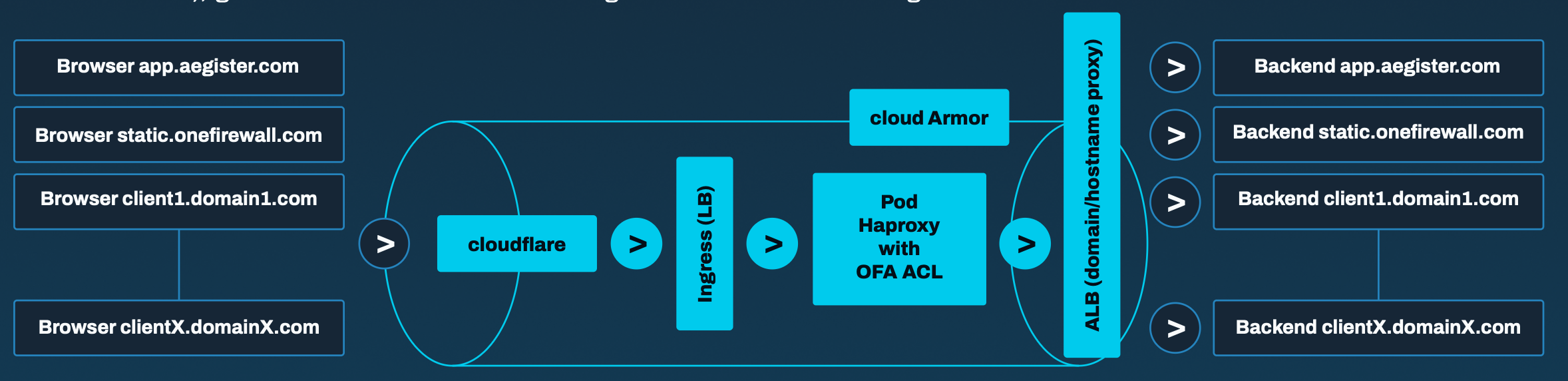
The request path
- DNS: your domain, for example client1.domain1.com, is a CNAME for secure.aegister.com, so visitors reach Cloud Defender instead of your server.
- Cloudflare: the request enters through Cloudflare, which mitigates DDoS traffic and serves cached content. Cloudflare passes on the visitor’s real address in the CF-Connecting-IP header.
- Google Cloud load balancer with Cloud Armor: Cloud Armor accepts only traffic coming from Cloudflare and refuses everything else, so the protection cannot be bypassed by reaching Cloud Defender another way. Here the attack URL rule and attack detection run (see below).
- Aegister proxy: refuses requests from addresses on the Threat Intelligence list and applies your own lists, then forwards the rest to your server, using the visitor’s real address from CF-Connecting-IP.
- Your site: the requests that passed every check arrive at your server, with nothing for the visitor to notice.
What each layer does
- Threat Intelligence (blocks): Aegister’s threat-intelligence list holds addresses already seen attacking other targets and is updated continuously. A request from one of them is refused before it reaches your site.
-
Attack URL rule (blocks): shown as Known attacks in the Cyber Console. It judges only the
address and the headers of a request: requests for sensitive files such as
/.envor/.git, path traversal, Log4Shell strings, malformed or abusive HTTP and scanning tools that declare themselves. It never reads form fields, JSON bodies or cookies, so your users’ input is never judged by it. - Automatic bans (blocks): a source that keeps sending such attacks to your site is banned from it for 24 hours. It appears in Banned IP addresses marked Auto-ban, and the ban lifts by itself. Google’s own service addresses are never banned this way, and requests for pages that do not exist never count towards a ban.
-
Your lists (block, you decide): an Owner or Security Officer sets them on the Protection
tab of the status page, and Cloud Defender applies a change within about two minutes.
- Banned IP addresses: an address or a network refused on this site, for a day, a week, a month or until you remove it.
- Whitelist: addresses that always pass. They are never banned and never refused by Threat Intelligence or the country rule. Known attacks are still refused, and a restricted page still opens only to its own list.
- Restricted pages: a page such as a login or admin area (for example
/wp-admin/) that opens only to the addresses and countries you list. Anyone else gets an error page. - Country rule: refuse visitors from the countries you list, or accept only those, and optionally refuse the Tor network and visitors whose country is unknown.
- Signature rules (detect, or block if you choose): every request is checked against the OWASP Core Rule Set, which covers SQL injection, cross-site scripting and other attack patterns such as command injection and file inclusion. By default these checks detect and do not block: matches are recorded as anomalies and listed in the Detections tab of the status page, where you review them. An Owner or Security Officer can switch SQL injection and XSS on the Protection tab from Detecting to Blocking: matching requests are then refused, within about five minutes. Read the FAQ before you do.
- Scanner detection (detection only): request patterns typical of automated scanners, such as a high share of not-found pages or a walk through many paths, are recorded as anomalies and listed in Detections too. The detection looks at behaviour, never at the name a client gives itself.
- Health checks: Cloud Defender periodically checks that your domain and your server respond, and that requests to your site really pass through the protection. The result is shown on the status page.